
AMD builds the hardware and software that power AI.
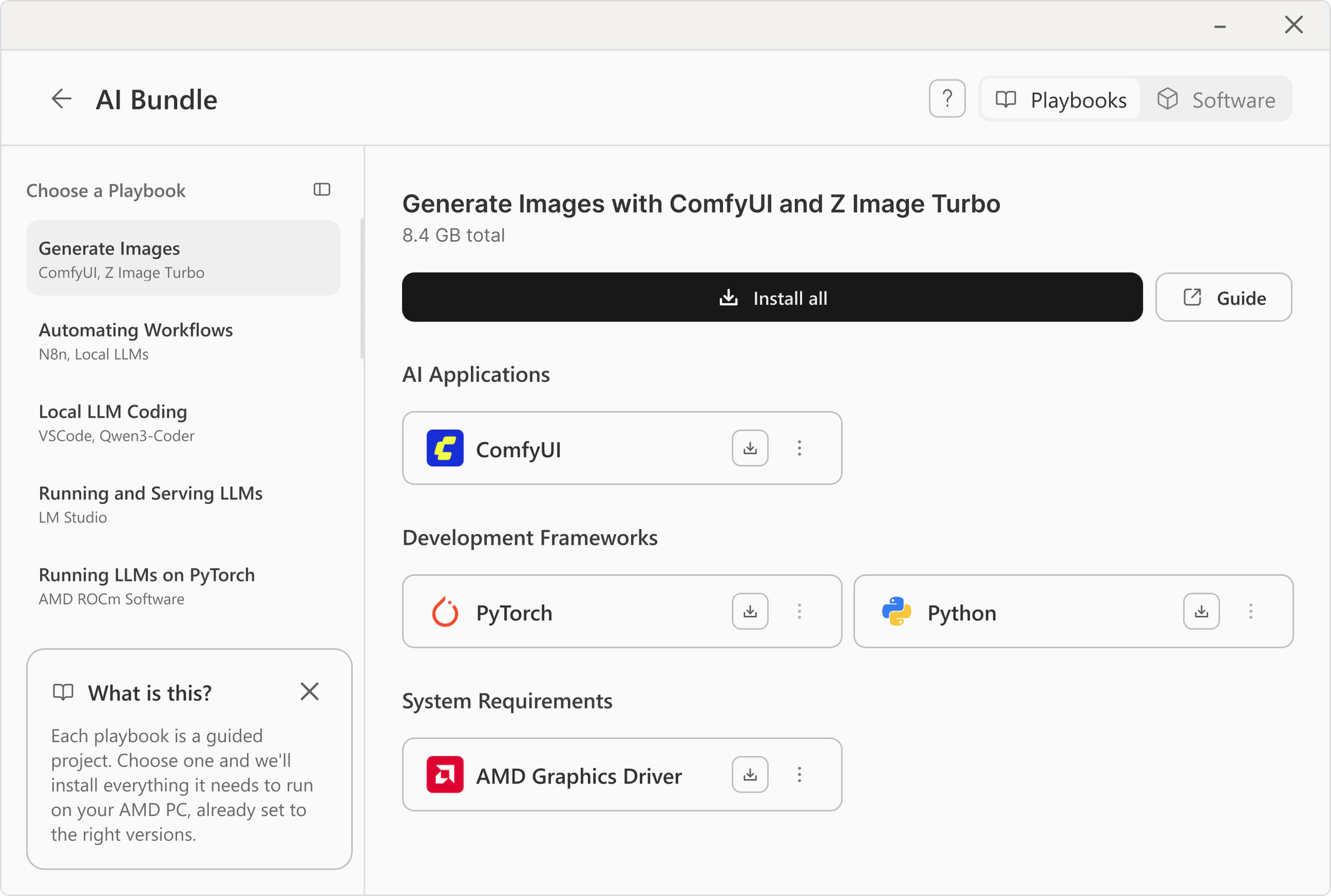
Recently, AMD introduced Playbooks to help people get started with local AI through guided, task-based workflows. Alongside Playbooks, AI Bundle packages the software needed to support those workflows. Install Manager is one of AMD’s main software products for installing and maintaining that software.
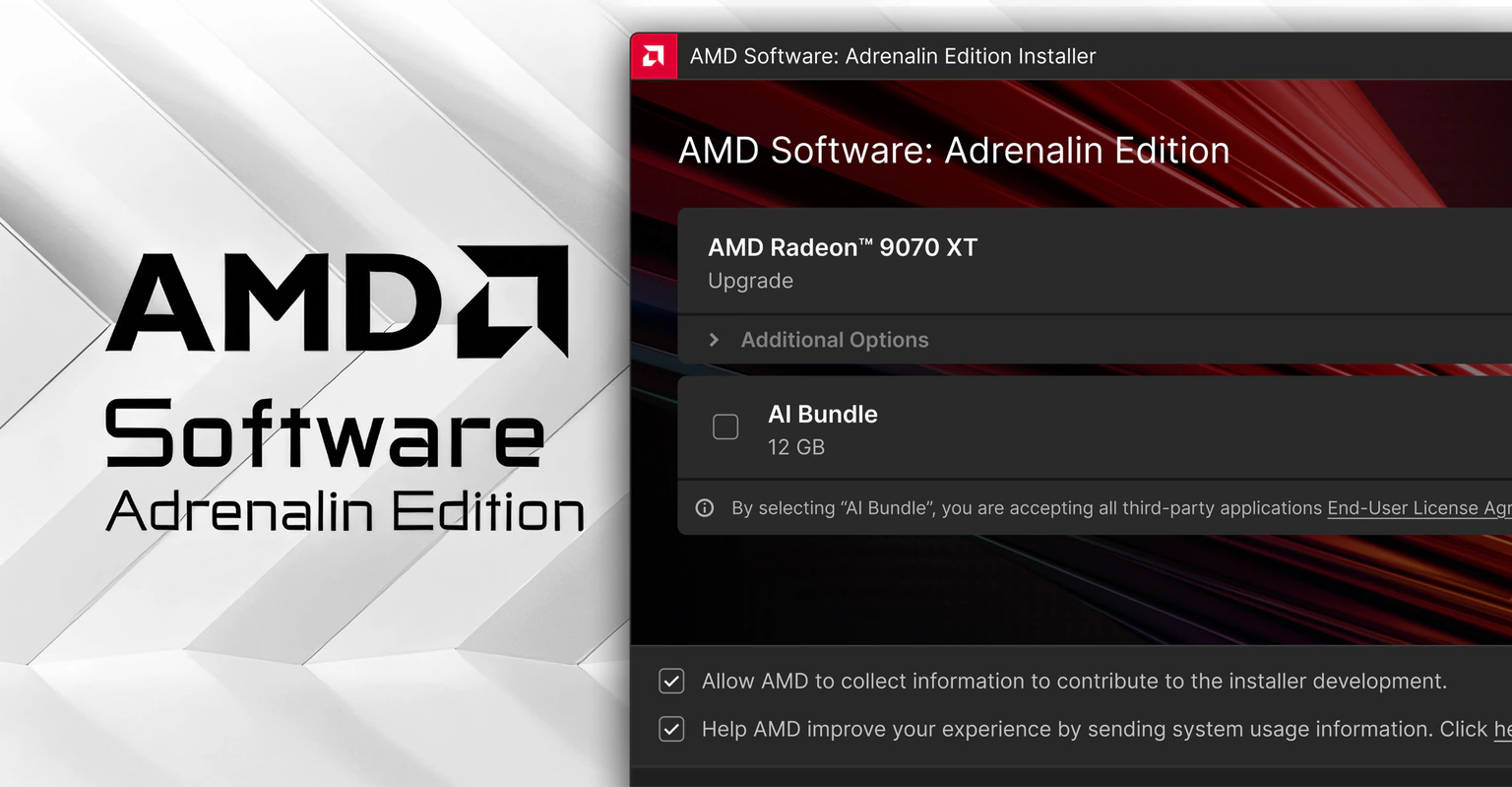
The Install Manager asked users to understand the software before they could understand what to do with it.
The existing experience was built around a software catalog. Users needed prior knowledge of applications, dependencies, and versions before they could get started. This worked for technical users, but created a barrier for beginners.
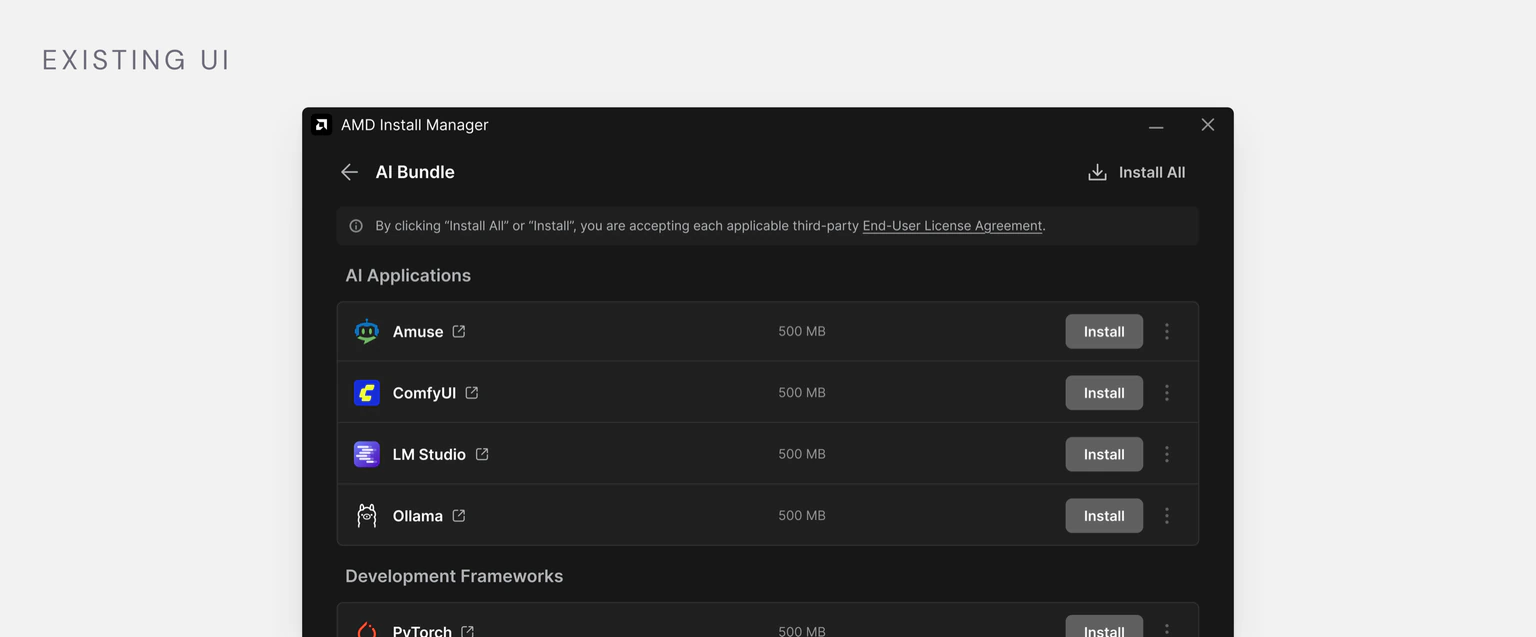
Playbooks made getting started with local AI more approachable. Could Install Manager do the same?
Software setup didn't have to start with software. By bringing AI Bundle, Playbooks, recommended software versions, and AI Models into Install Manager, we could rethink how users discovered, installed, and managed the software behind each task.
Models served a different purpose from apps. Applications could be aligned to AMD's recommended versions, while models did not follow the same configuration system.
A task-first Install Manager for getting local AI up and running.
The redesigned experience gives beginners a clearer way to get started while keeping direct software management available for experienced users.
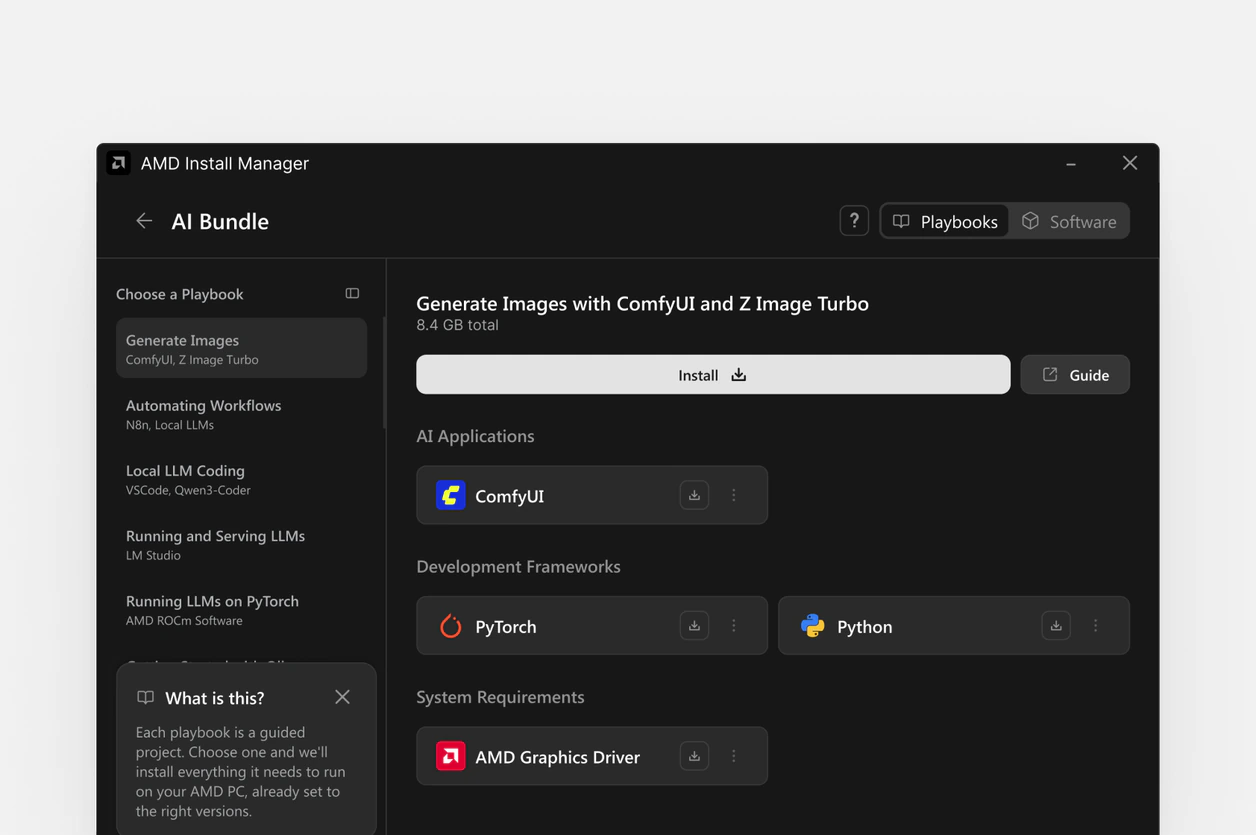
Start with a task
Choose a Playbook and install the software needed to complete it.
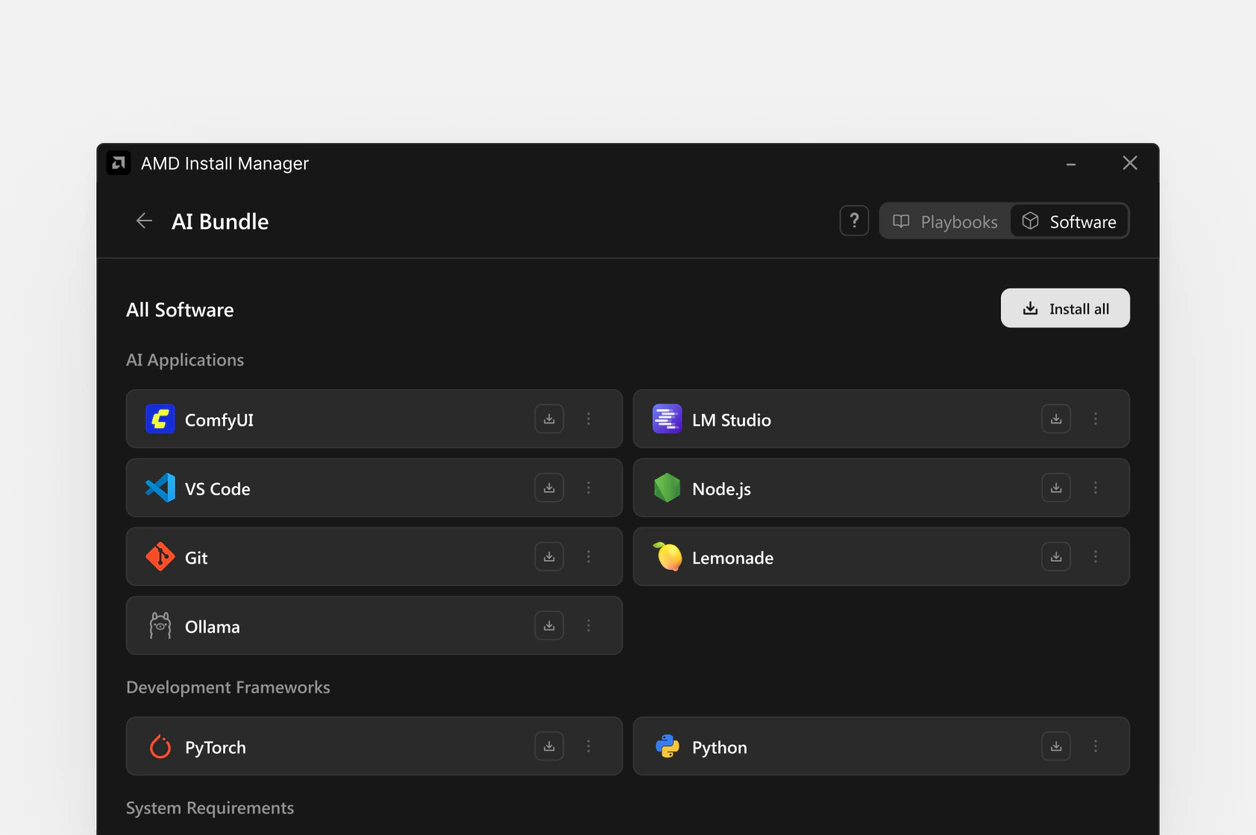
Manage software directly
Install and manage individual applications without going through a Playbook.
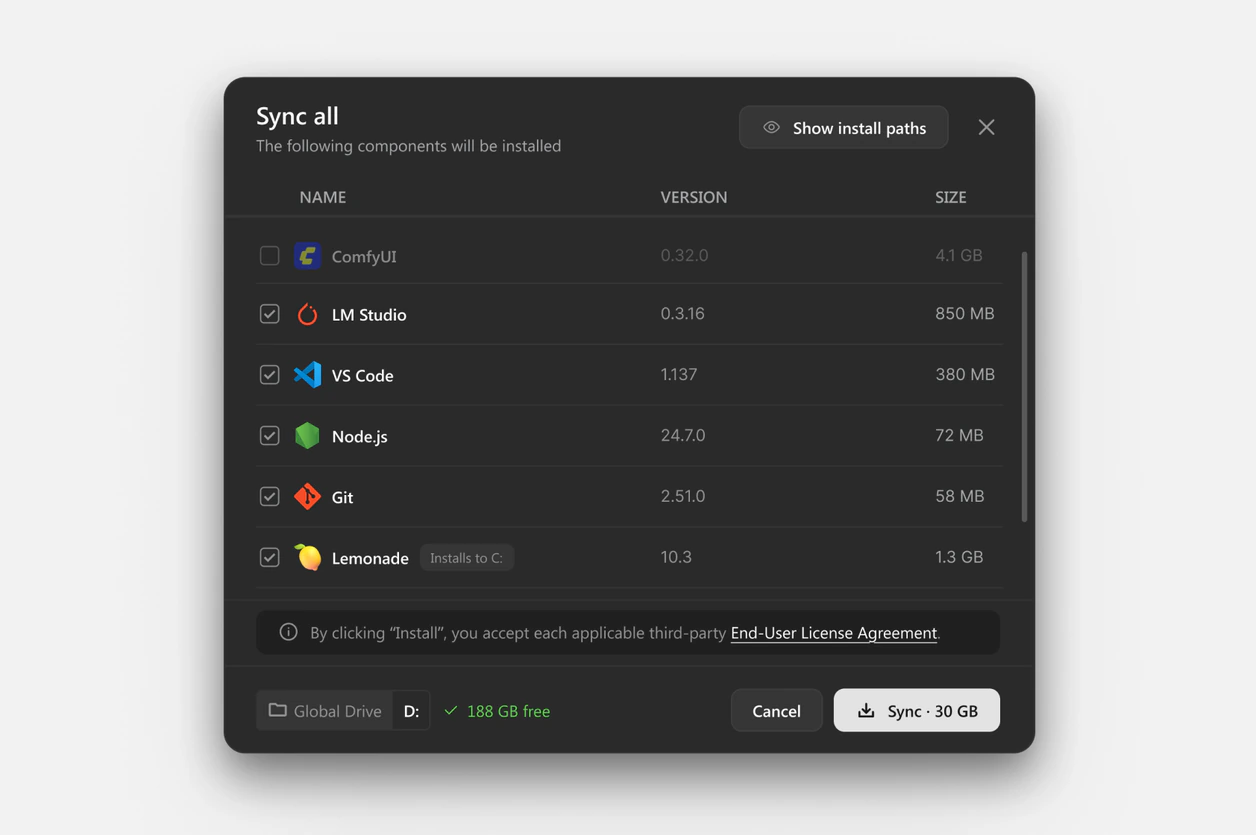
Sync to AMD's recommended versions
One action checks installed versions and brings them in line with AMD's recommended versions.
I started by understanding who we were designing for.
I spoke with directors and management and reviewed user survey findings to understand where different users were getting stuck.
Beginners need help knowing where to start.
Users weren't sure why they should install AI Bundle or what they could do with it. The number of tools and technical terminology felt intimidating, causing some users to drop off before installing anything. Primary goals: Discover AI tools, understand what they do, identify the right software, install software
Experienced users knew what they needed, but setup was tedious.
These users came in with specific software in mind and wanted to get their workflows running without manually managing software compatibility. Primary tasks: Install software, manage installation locations, maintain compatible versions
How might we make setup more approachable without taking away control from experienced users?
How should beginners and technical users enter the same product?
User flow
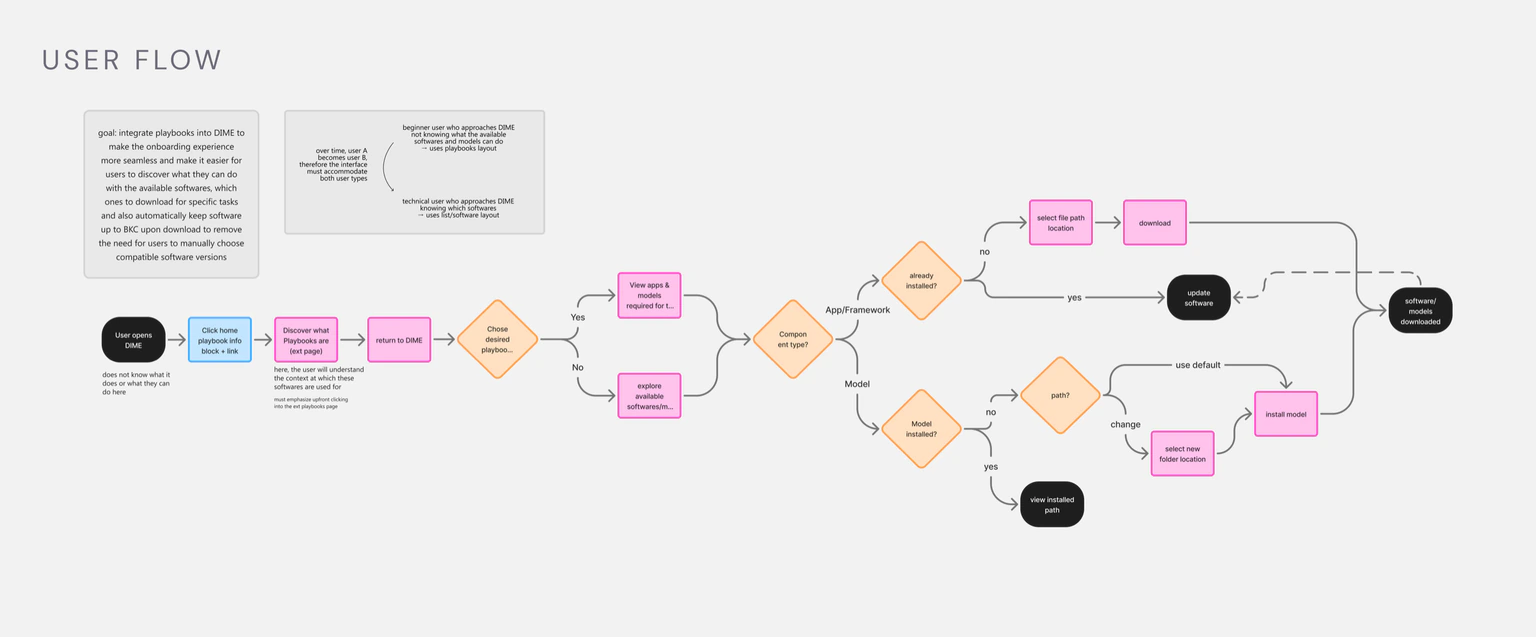
I mapped the journey from discovering AI Bundle and Playbooks to installing the software needed for each task. The approach was to give beginners more context before introducing the software, while keeping a faster path for experienced users.
Two tailored views
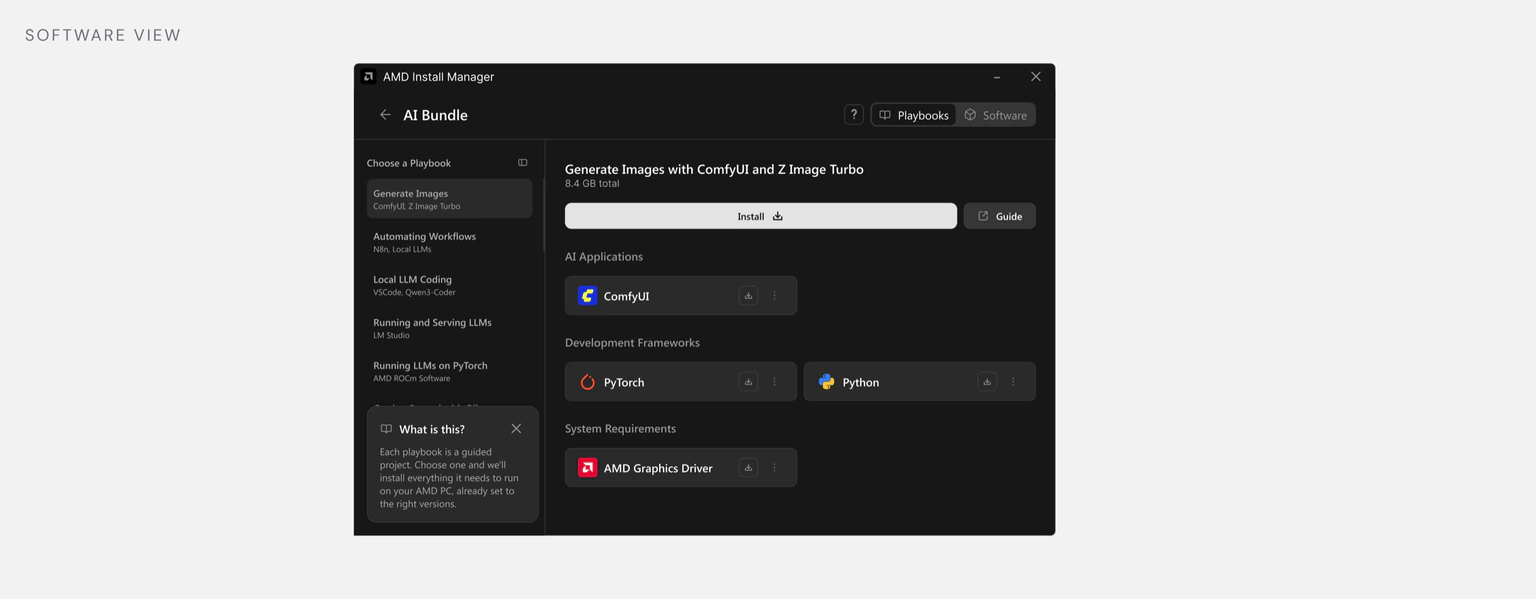
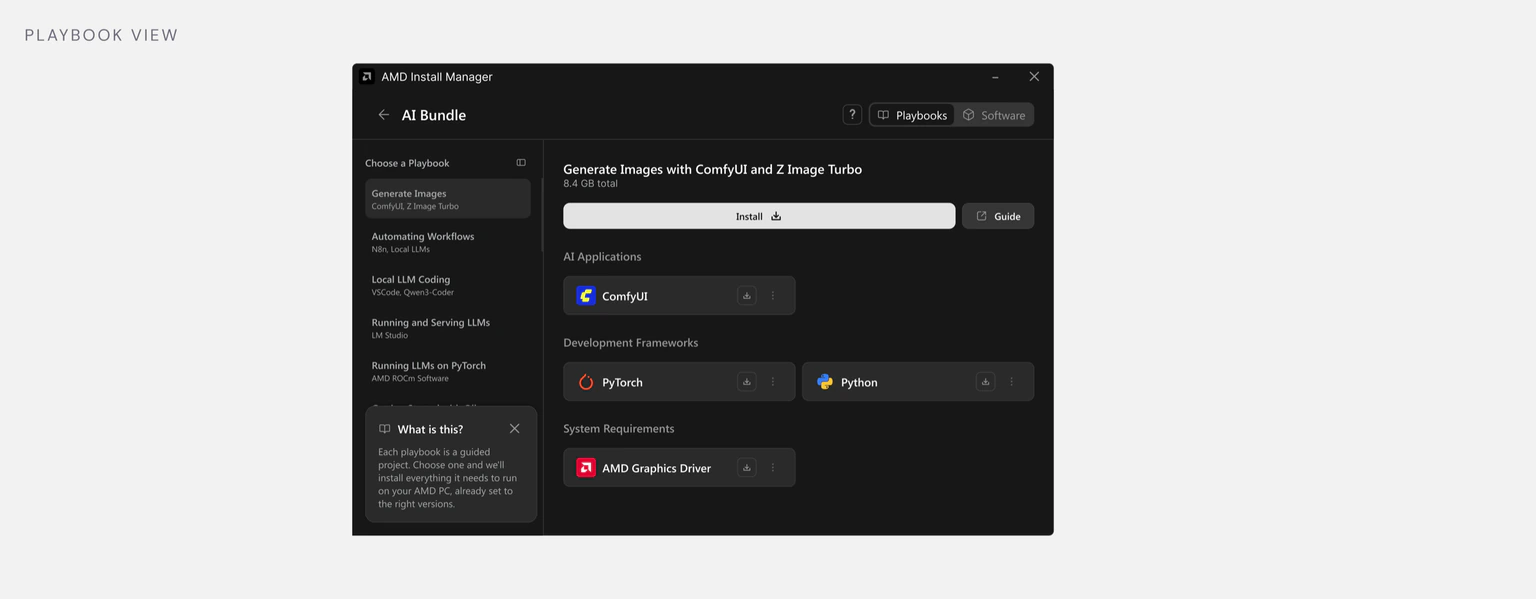
We made Playbooks the default view so beginners could start with a task and understand what the software was for. Experienced users could switch to Software to manage individual applications directly. This let both users enter the product through the path that matched what they already knew and wanted to accomplish.
Insight: Beginners needed more guidance to know where to start.
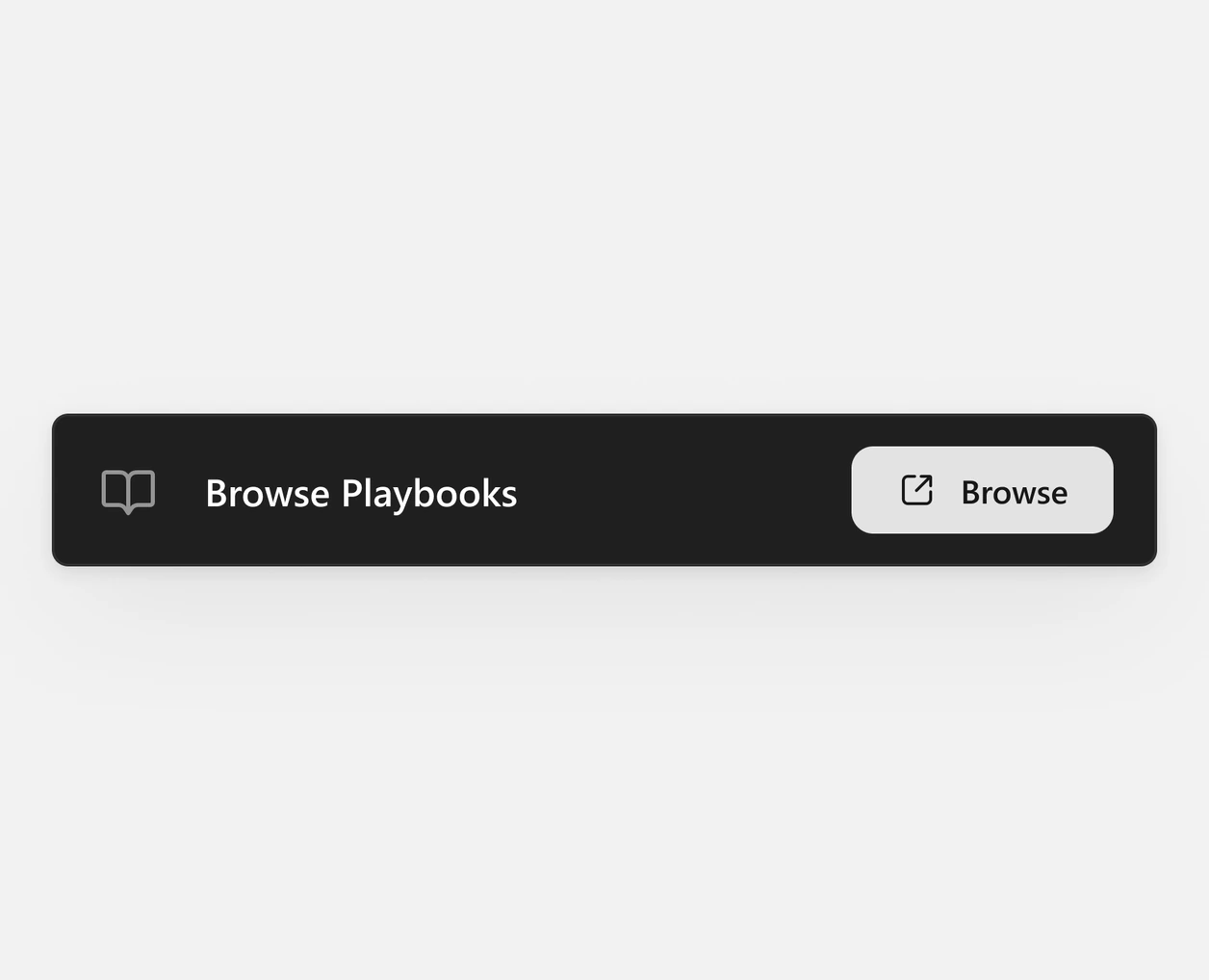
Playbooks
A direct link brings users into Playbooks, where they can explore different tasks and understand what each one helps them accomplish.
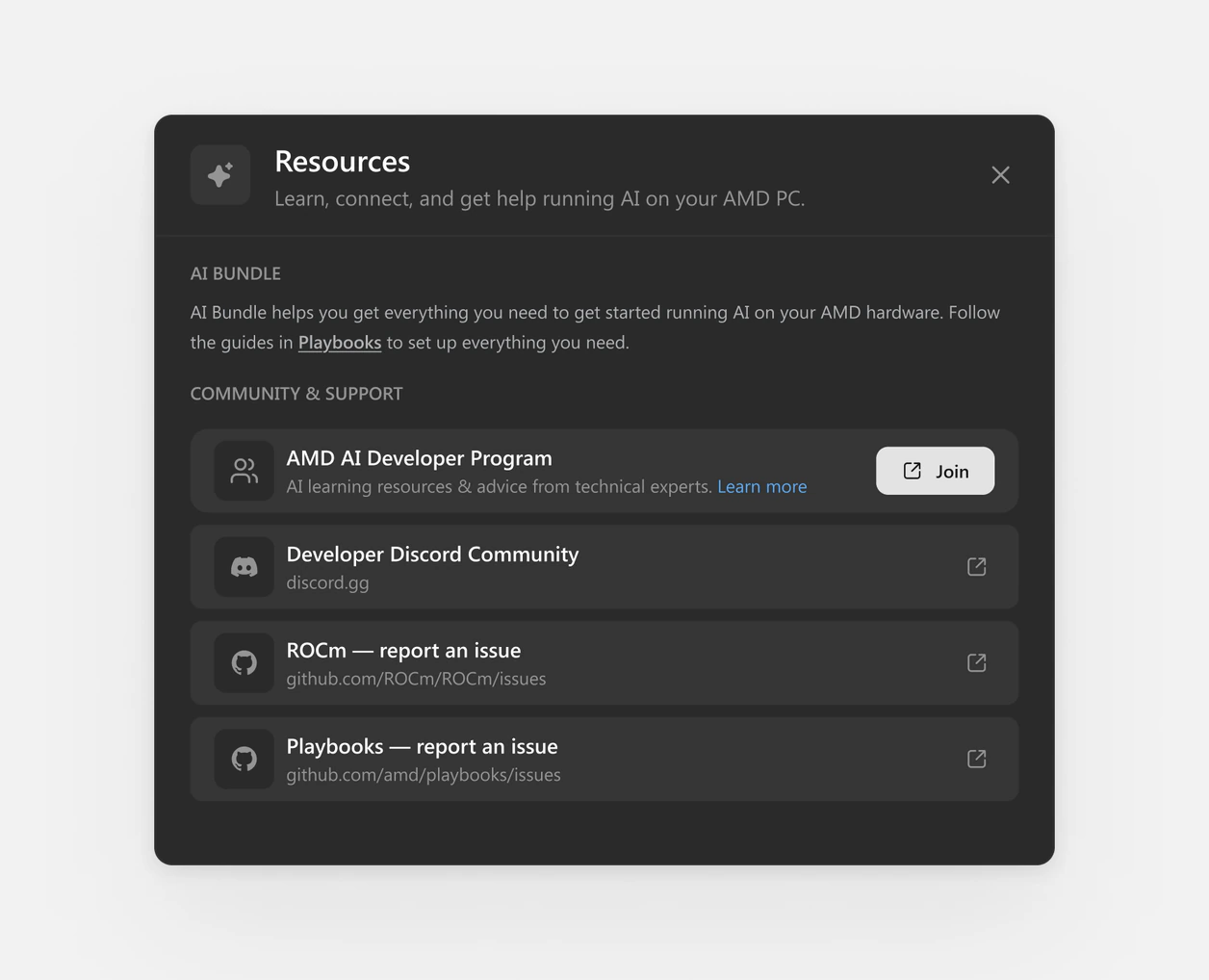
AI Resources
A dedicated panel surfaces Playbooks, support, and community resources so beginners can learn more without needing to know where to look.
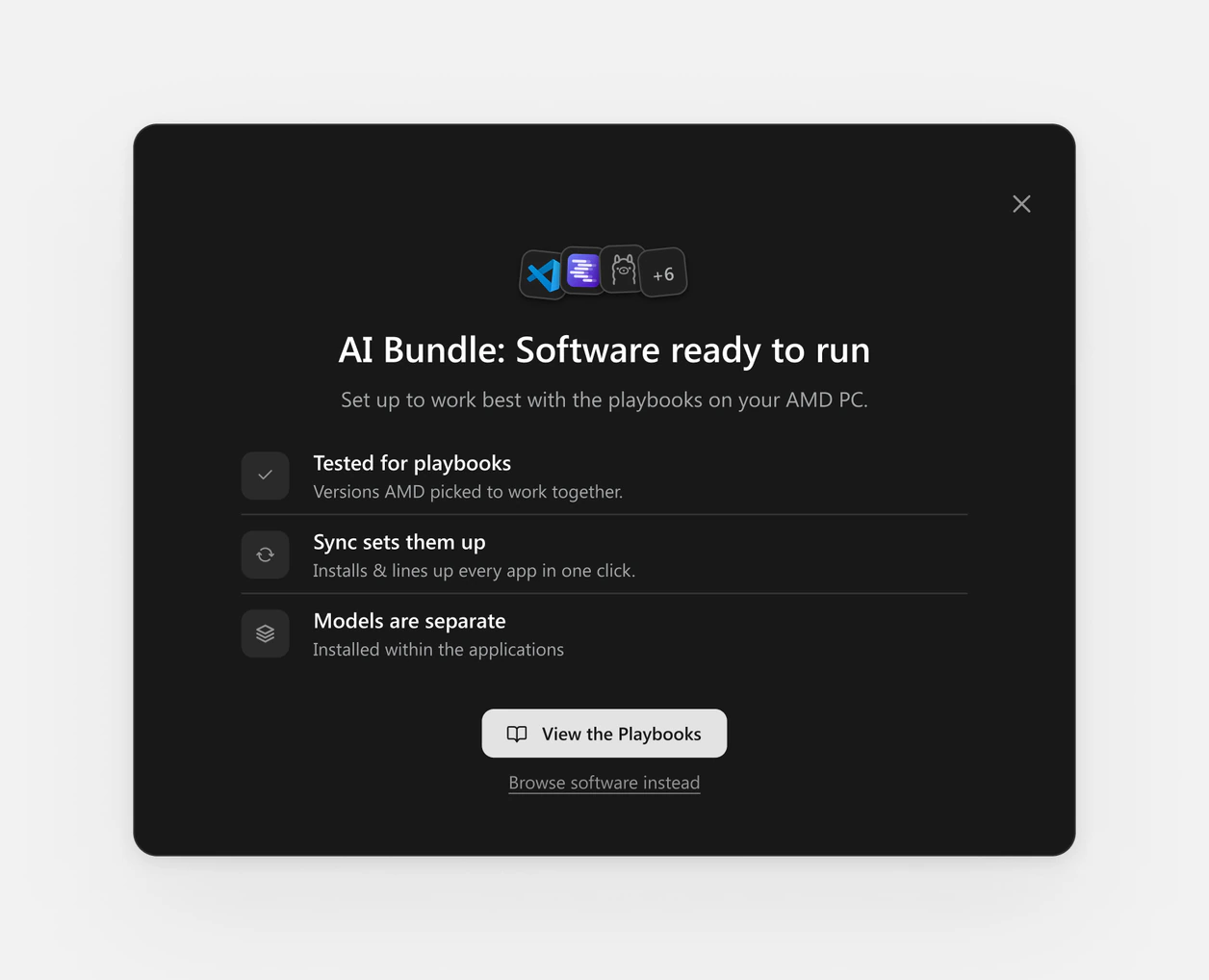
What is AI Bundle?
The first time users open the AI Bundle tab, an explainer introduces what it is and what it includes. Users can reopen it later for a refresher.
Insight: Different users need different levels of control.
To support both beginners and experienced users, we designed two ways to install software: individual installs for more control and group installs for faster setup.
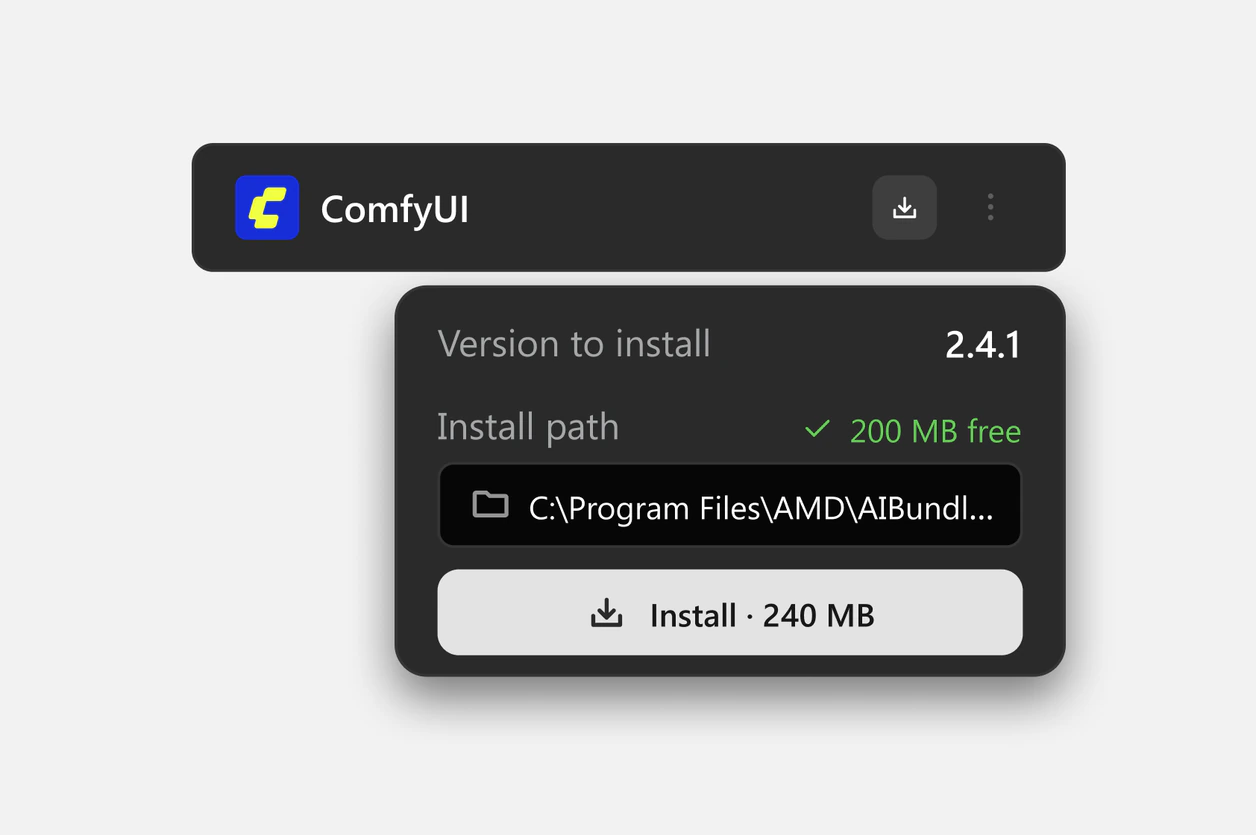
Individual installation
Each app has its own installation menu, giving experienced users more control over what they install and where.
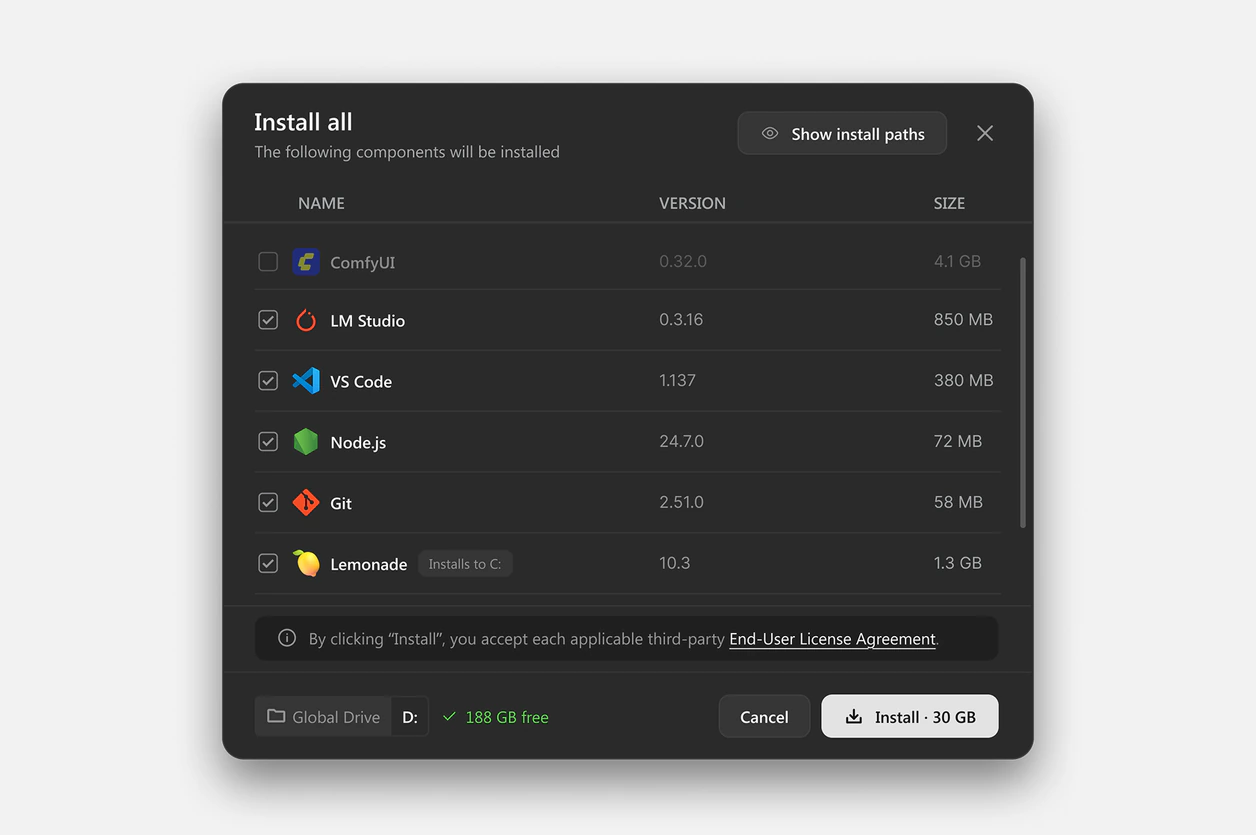
Group installation
The group install flow lets users install multiple apps at once, making setup faster without requiring them to manage each one individually.
How should Models and Software be distinguished?
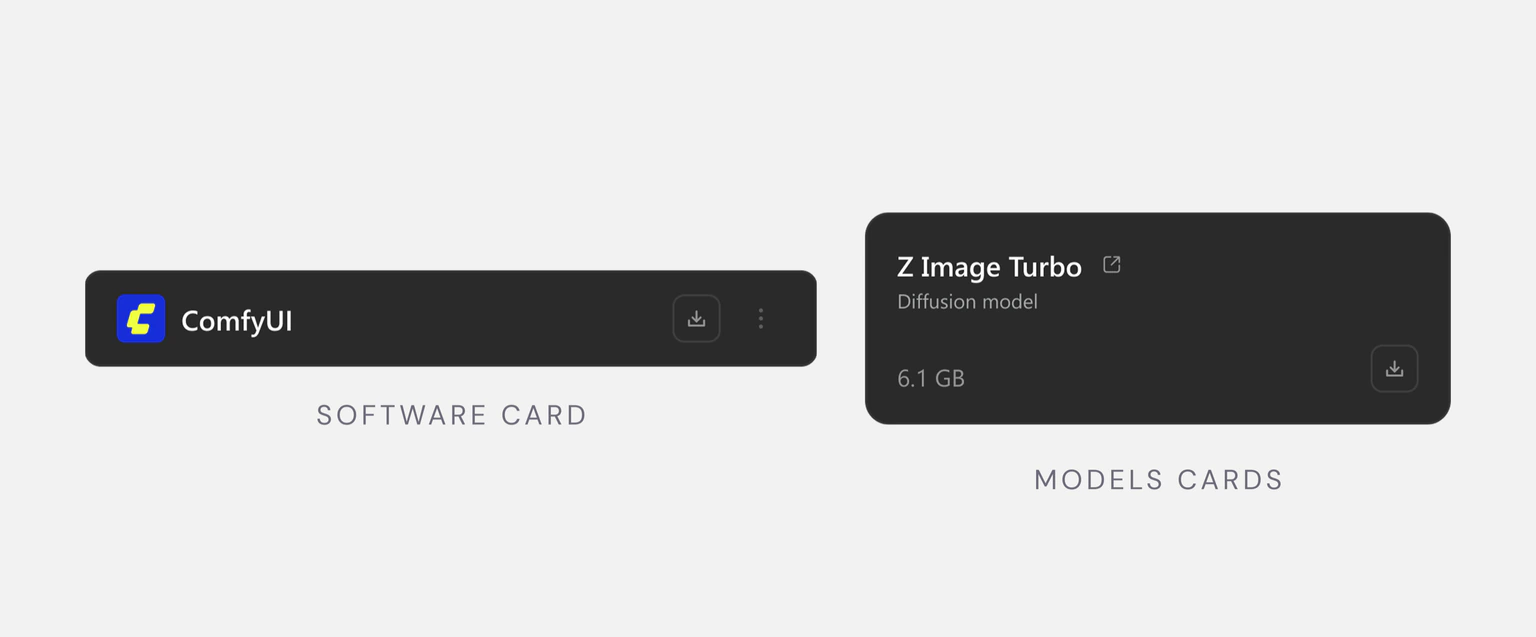
We made the cards visually distinct to reflect their different roles. Model cards are larger to reflect their larger download sizes, while Software cards stay more compact.
How should users navigate the Playbooks catalog?
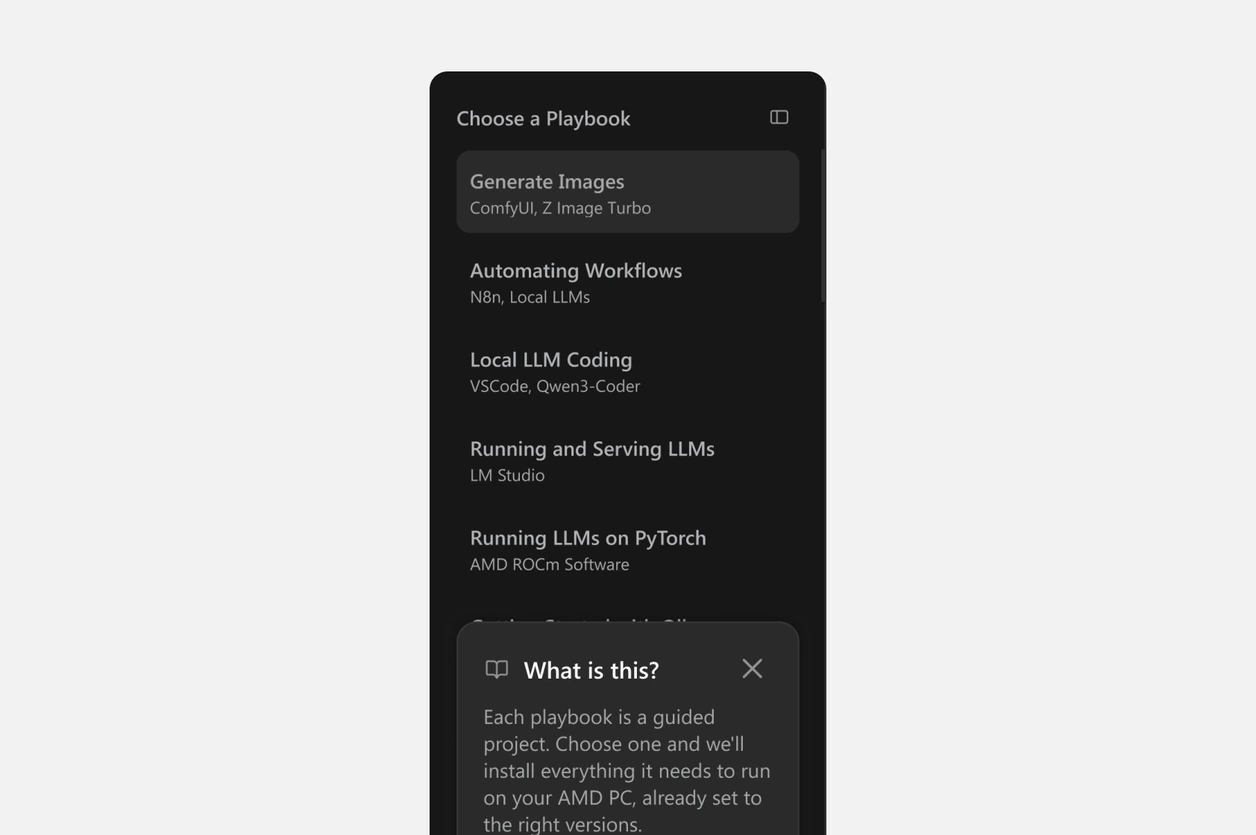
List of Playbooks
The first version simply listed all Playbooks in the side panel. This approach worked since this release only shipped 7 Playbooks. However, it is not scalable as more Playbooks get added over time.
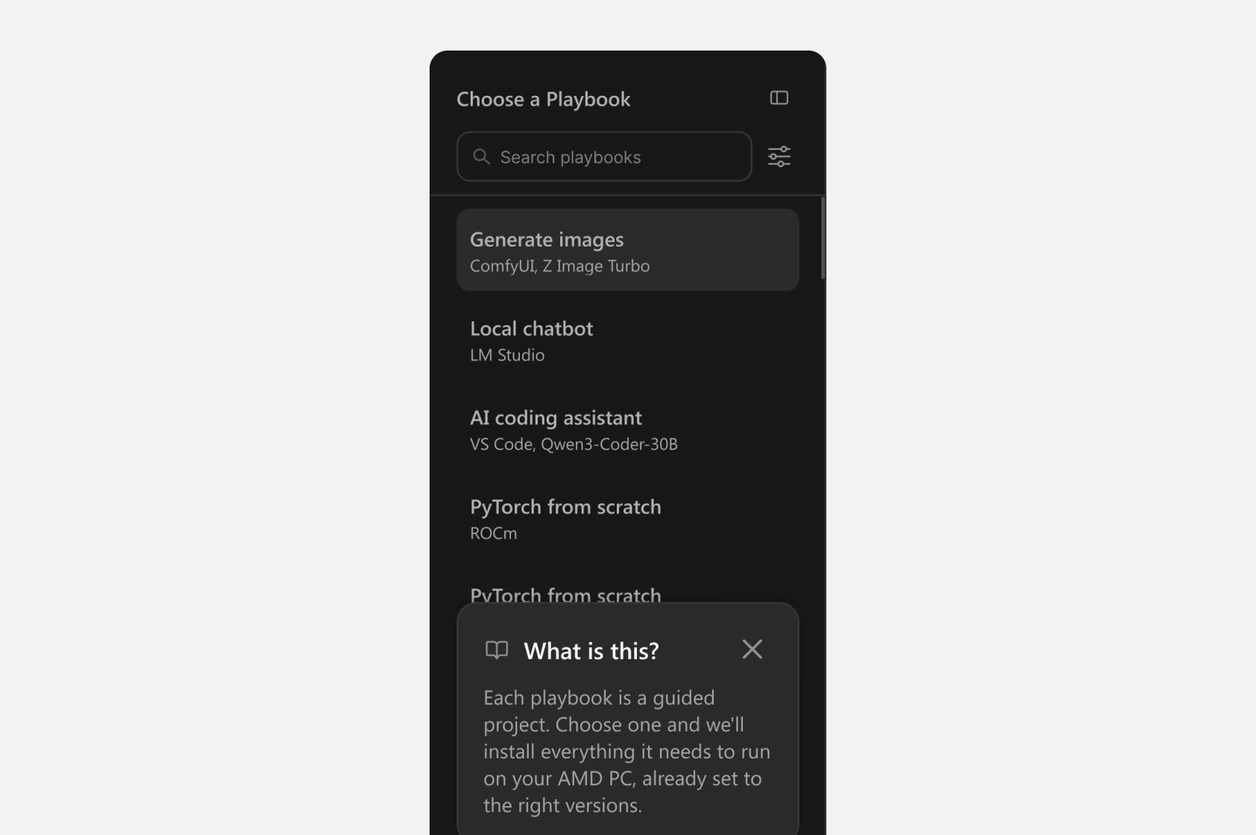
Search and filters
For scalability, I explored adding search and filters that match the existing Playbooks experience so users could browse the growing catalog without scrolling through a long list.
Models were part of the original scope, but that changed mid-project.
Midway through the project, product management removed Models from scope due to implementation timelines and model file sizes. I removed the model cards and related setup states from the release and reworked the remaining experience.
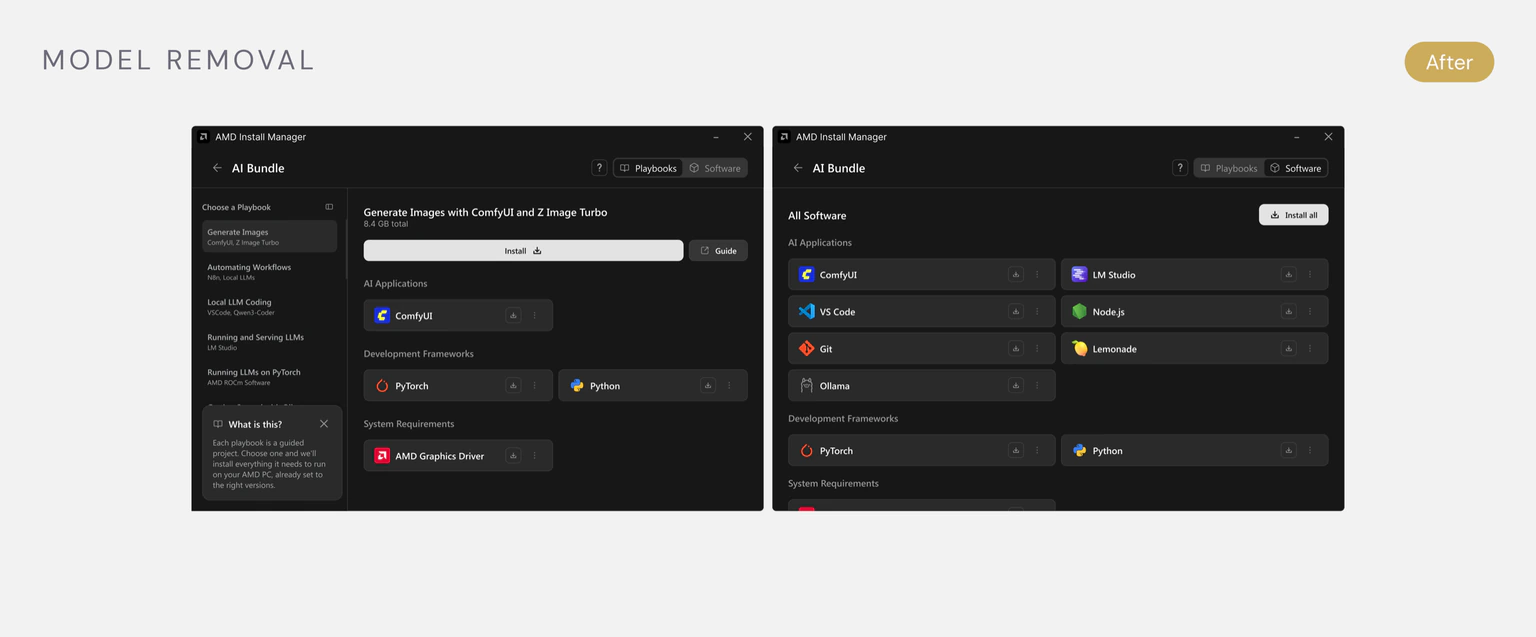
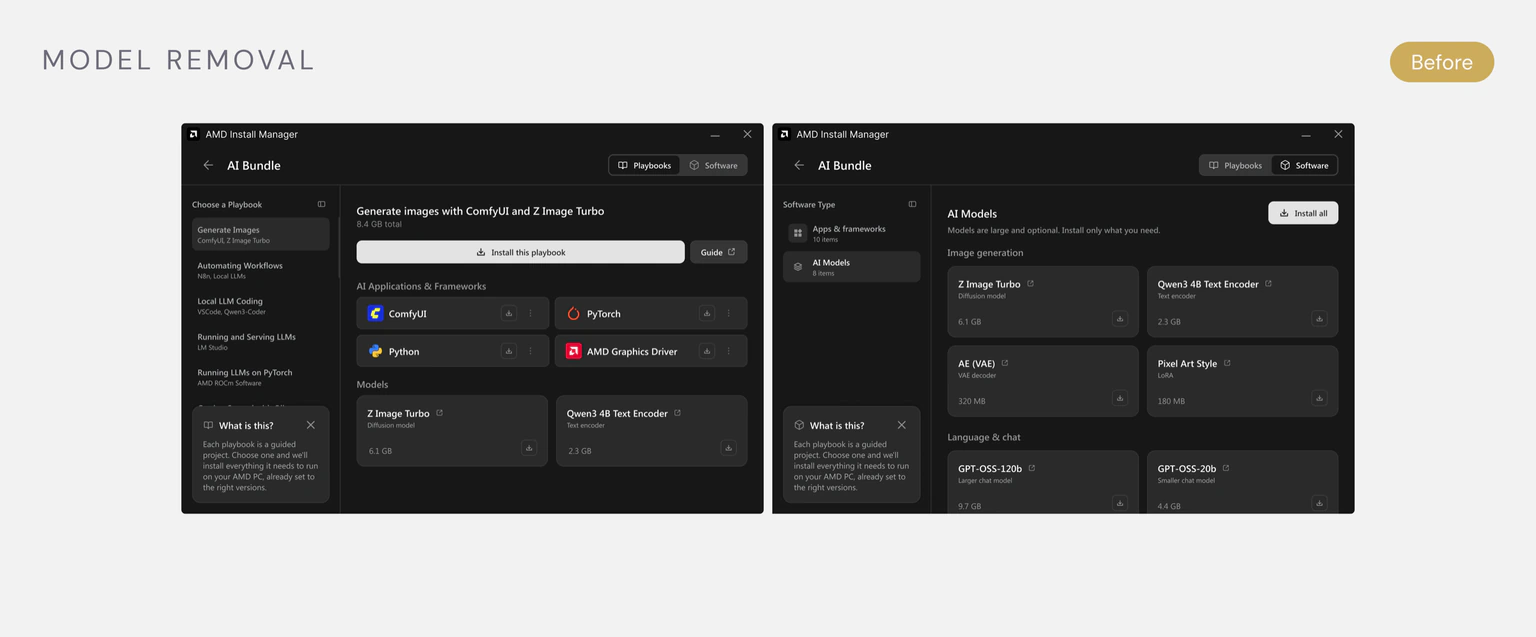
The experience looked simple, but the installation system was anything but.
I worked with engineering to map the edge cases behind installation, including dependencies, storage, installation paths, cancellation, and partial failures.
One global install path would have been simpler, but it wasn't how the system worked.
We initially designed one global install path for the installation overlay. After working with engineering, we learned that applications could install into different folders, while some had fixed locations. How might we expose that flexibility without making installation feel complicated?
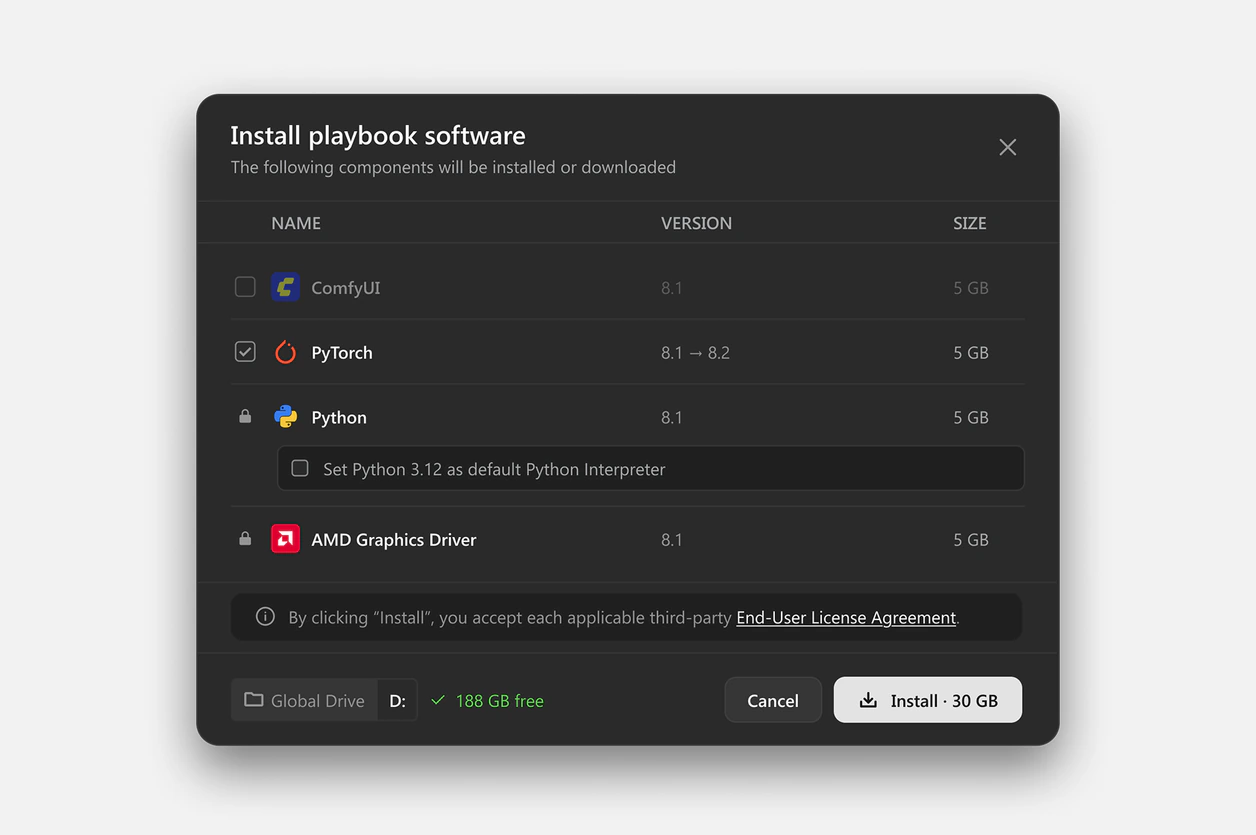
Exploration 1: Global drive selector
We first changed the global install path to a drive selector. This gave users a way to switch drives when storage was limited, but did not show where each application would actually install.
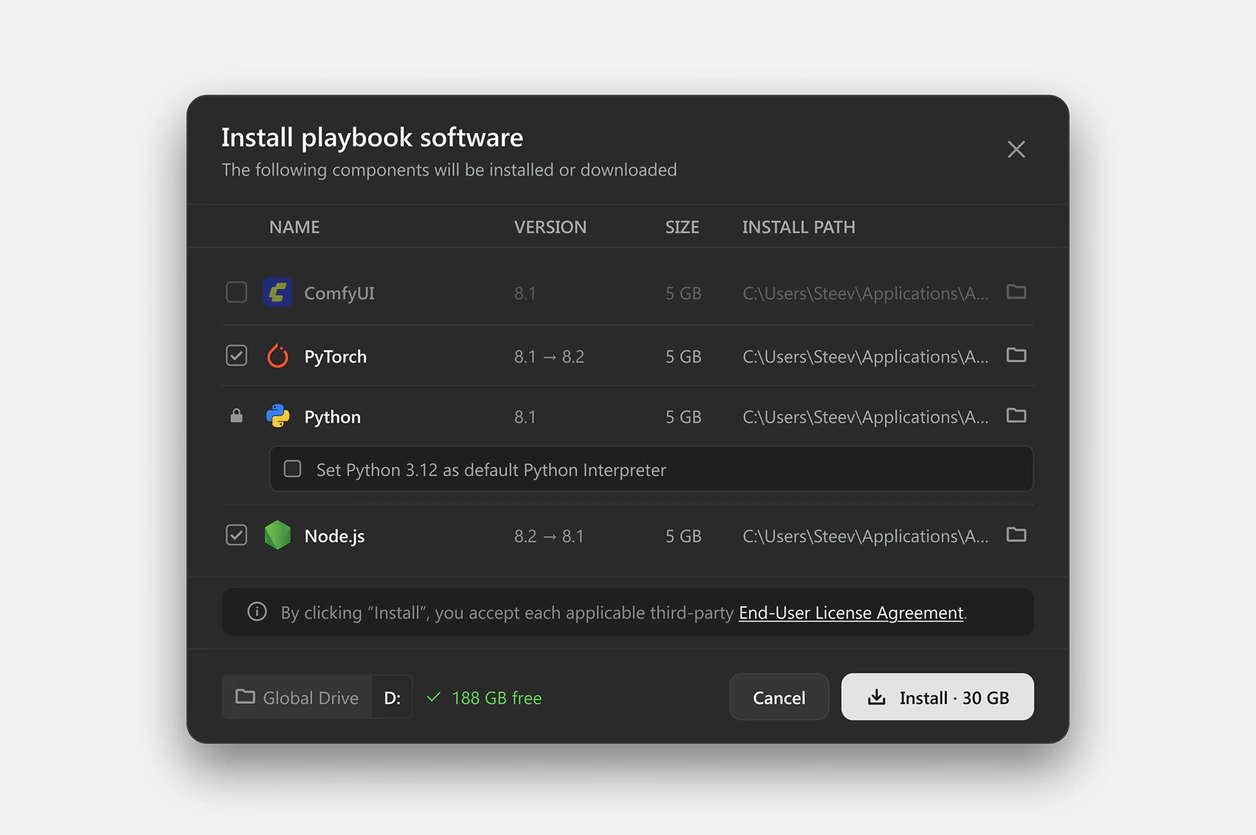
Exploration 2: Show every install path
We then showed the install path for every application. This gave users visibility into where each app would go, but added too much information to an already dense overlay.
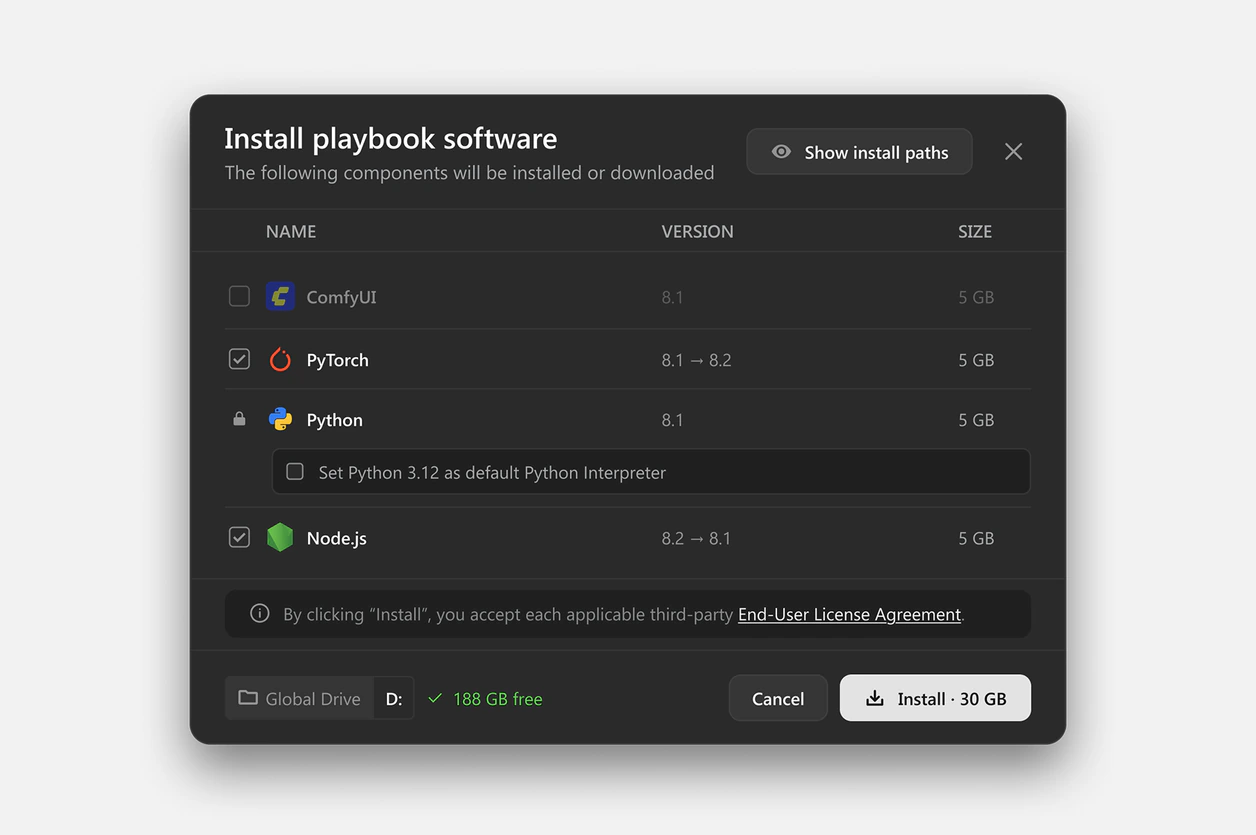
Exploration 3: Hide paths by default
We moved paths behind a control so users could focus first on version and size while keeping paths available when they needed more context.
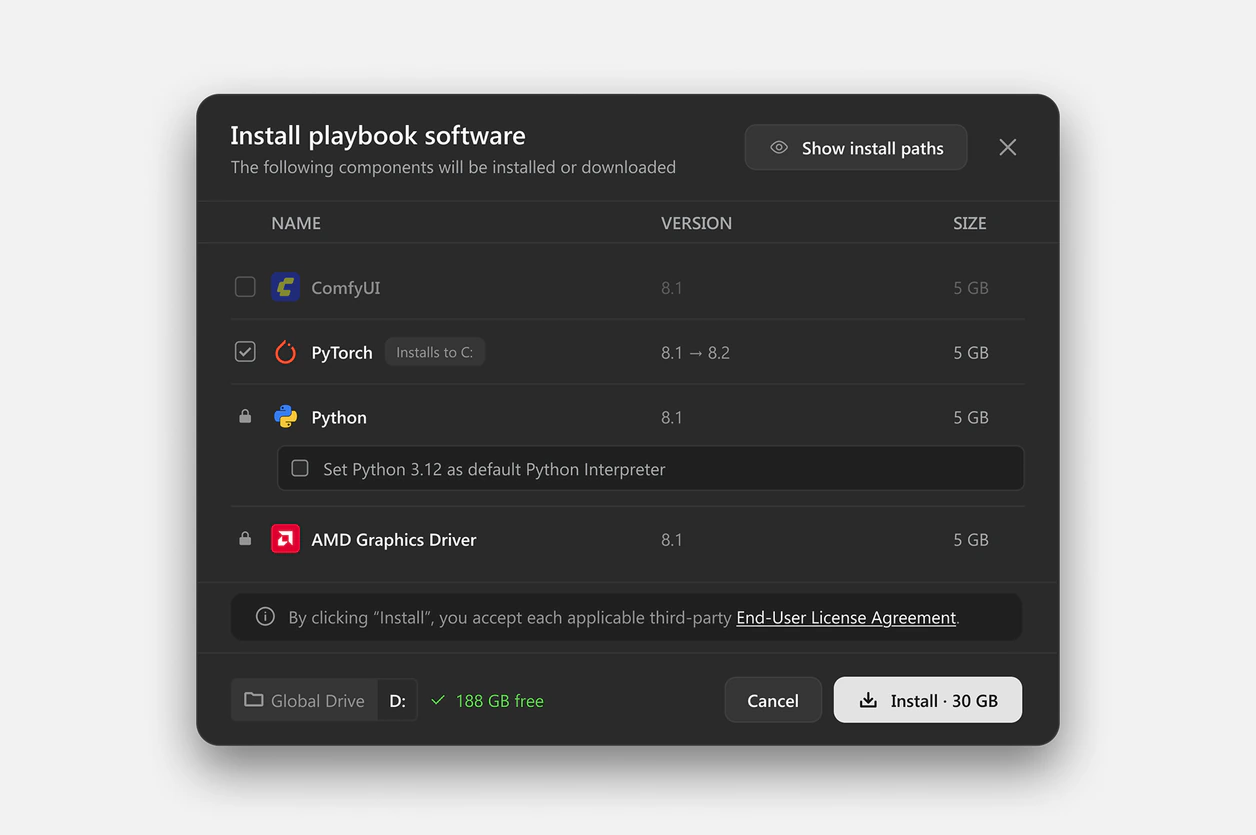
Exploration 4: Surface locked locations
Some applications had fixed locations, so we added a tag to surface those locked locations without requiring users to expand out the install paths. This made the expanded state too crowded, so we simplified the layout to keep the path, version, and size information from competing for space.
Where we landed
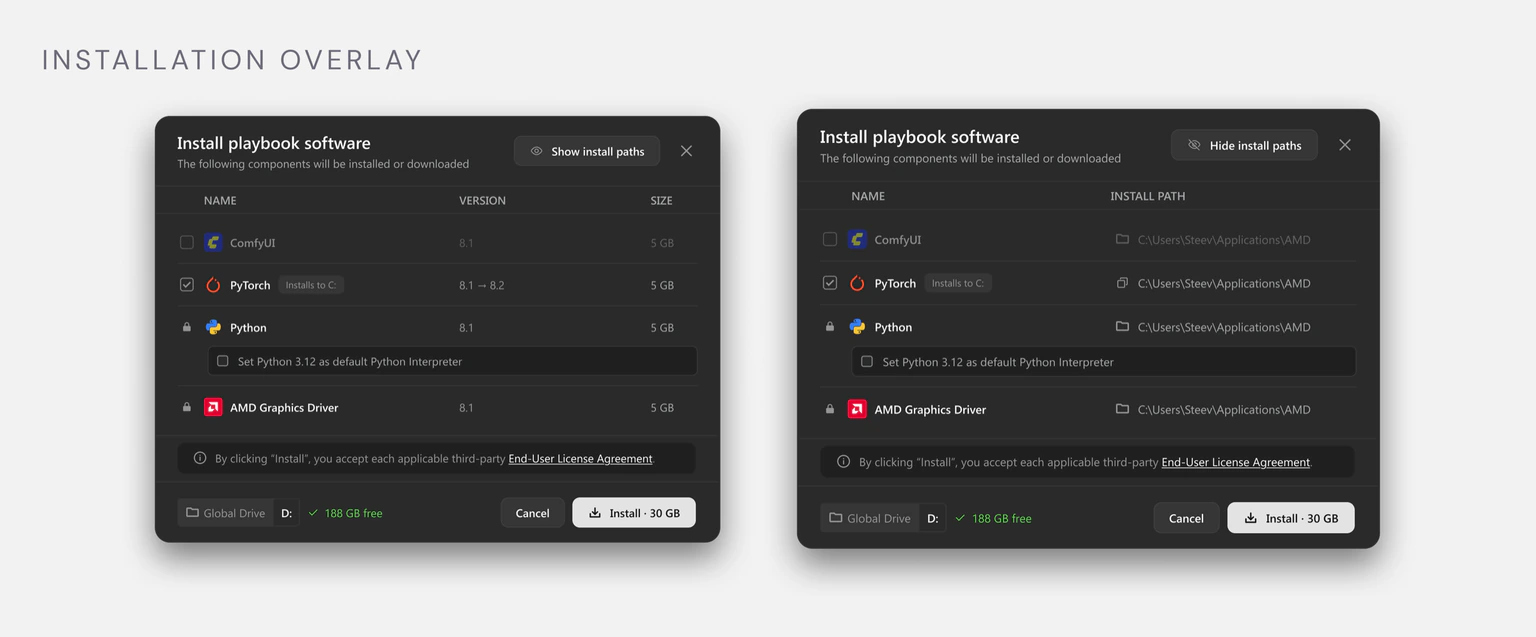
The final overlay keeps version and size focused while making install locations available when users need them. The tradeoff was more flexibility at the cost of some added complexity, but the final model matched how installations actually worked.
Dependencies should be understandable, not another thing to manage.
Some applications require other components to work. For example, PyTorch requires Python.
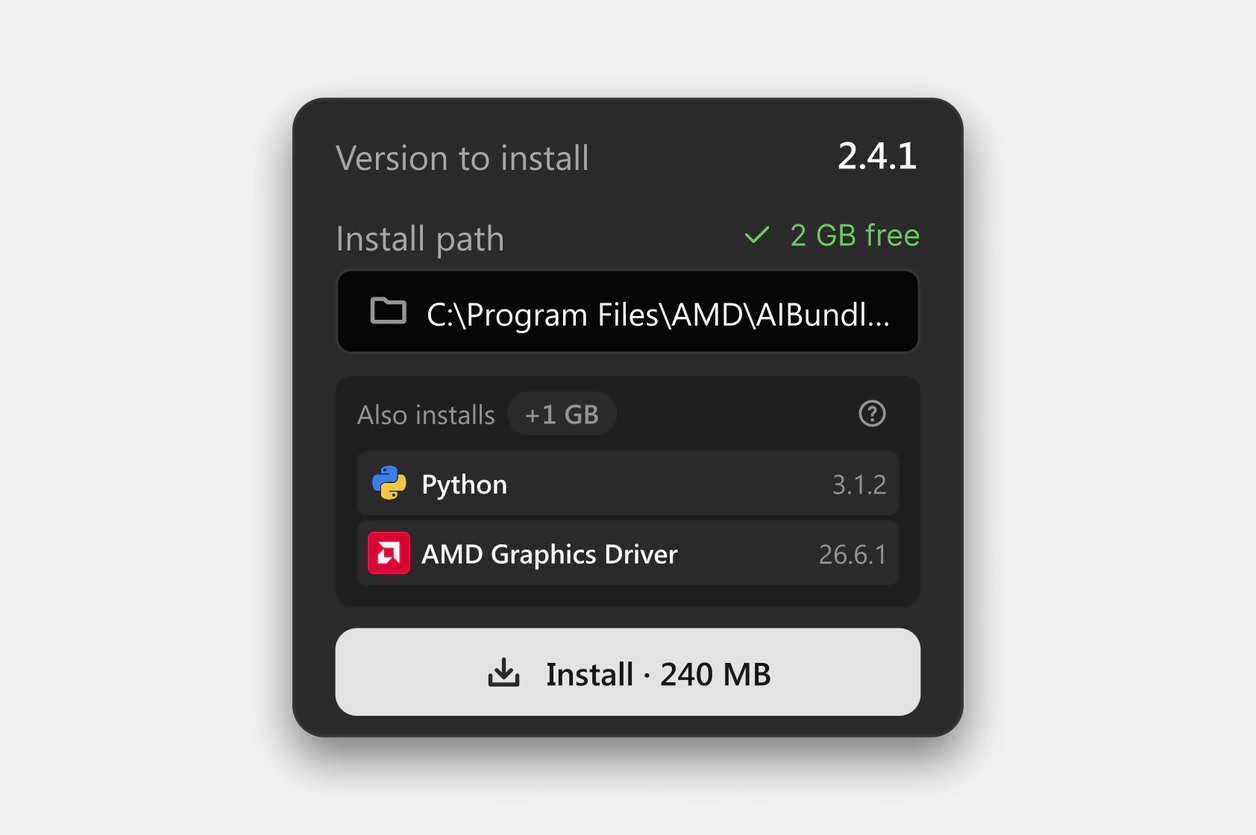
Scannable dependencies
Individual installs use app icons so users can quickly see what will be installed alongside the selected application.
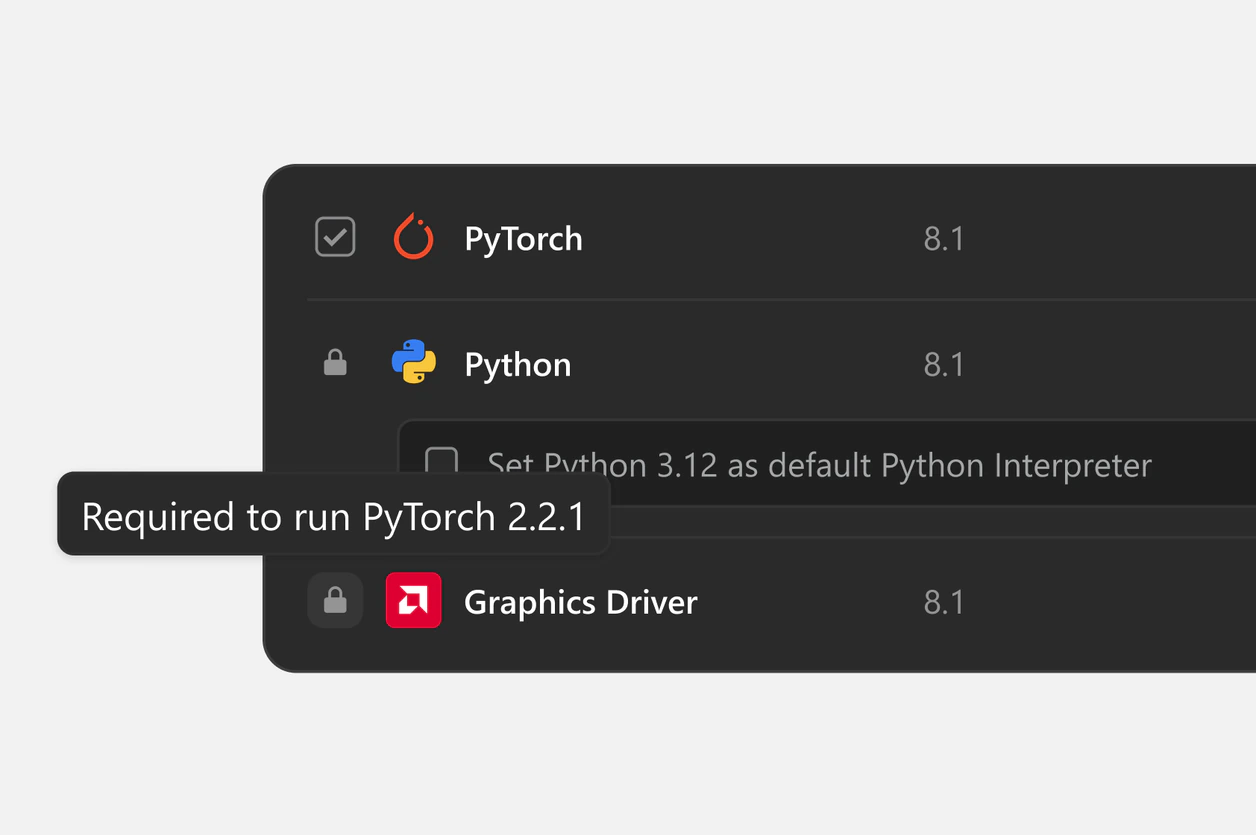
Locked required dependencies
In the installation overlay, required dependencies are locked, with a hover explanation showing why they are needed.
Recovery shouldn't undo completed work.
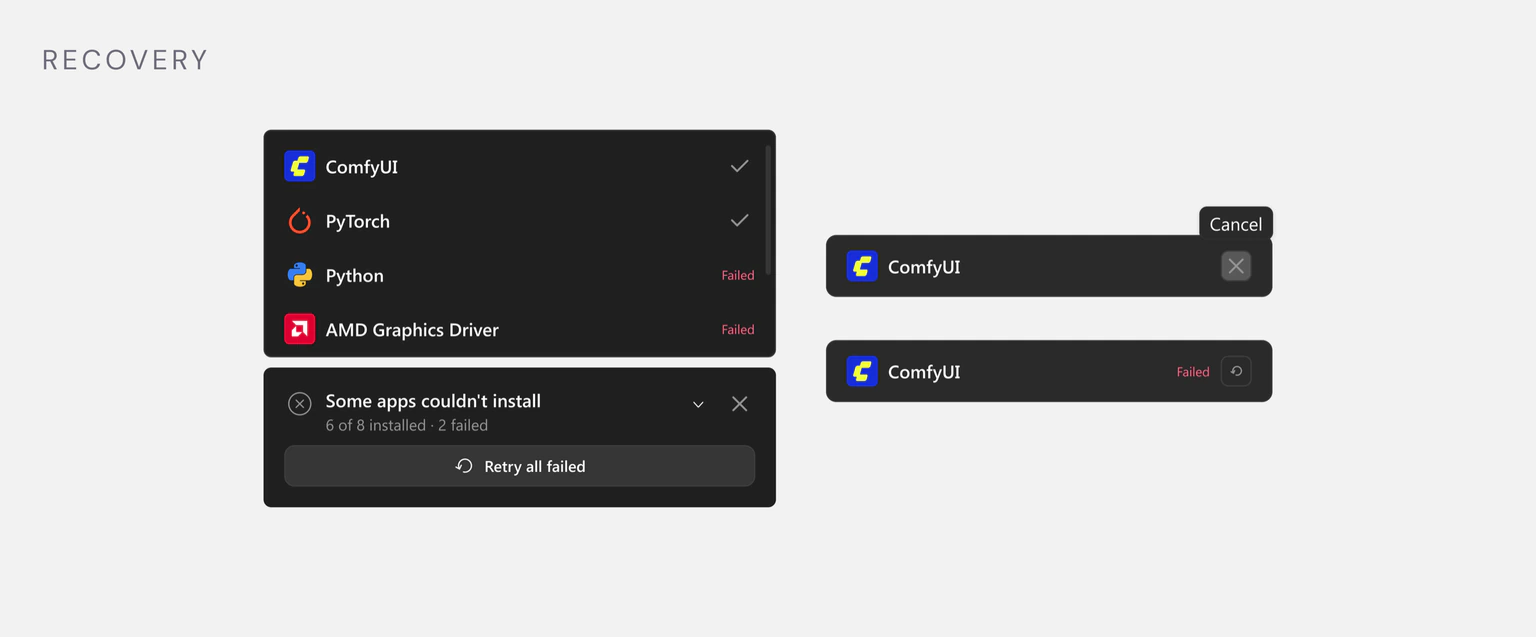
If one application fails or is cancelled, users shouldn't have to start over. Completed applications remain installed, failed items can be retried, and cancelled items return to an installable state.
A simpler way to get from an AI goal to a working setup.
Playbooks gives beginners a task-first entry point. Software keeps direct management available for experienced users. Sync handles version alignment without asking users to manage compatibility themselves.
What I learned
Bring engineering into edge cases early.
Some storage and installation constraints surfaced later in the process. Bringing engineering into these conversations earlier would have helped me account for them sooner.
Stay detached from your designs.
When the Models feature was removed mid-sprint, I had to quickly rethink parts of the experience. In a fast-moving environment, designs need to change with the product.
Technical constraints are part of the design.
The final experience depended on complex rules around paths, dependencies, storage, and installation states. Working through those constraints helped me turn system behavior into simple user decisions.
Where I'd take it next
Scale Playbooks as the catalog grows.
As more Playbooks are added, I'd revisit the navigation with search, filtering, and relevance so users can find the right Playbook without scrolling through a long list.
Scale the Software view
The current catalog fits in one view, but that will change as more applications are added. I'd explore search, filtering, and grouping to keep the Software view easy to scan.
Explore a guided AI setup assistant
I would explore an AI assistant that lets users describe what they want to accomplish and recommends or creates a Playbook to help them get there.